100+ Gemini AI Photo Editing Prompts (Copy & Paste)

You upload a photo to Gemini, type “make it better”, and get back a face that does not look like you, a changed background you never asked for, or the same photo with no change at all. The problem is rarely the tool. It is the prompt.
Google’s own guidance says editing prompts work best when they are direct, specific and state what must stay the same. This guide gives you 100+ ready prompts written that way, sorted by what you want to do, plus the steps, limits and privacy points most prompt lists leave out.
Before you start:
-
Gemini image editing is free to use with limits, and paid Google AI plans get higher limits.
-
You must be signed in and 18 or older to edit images.
-
Every image made or edited in Gemini carries an invisible SynthID watermark and a visible AI watermark.
How to Edit a Photo in Gemini (Step by Step)
-
Open gemini.google.com or the Gemini app and sign in with your Google account.
-
Tap the + button next to the chat box. Choose Files to upload your photo, or Google Photos / Drive to pick one from there.
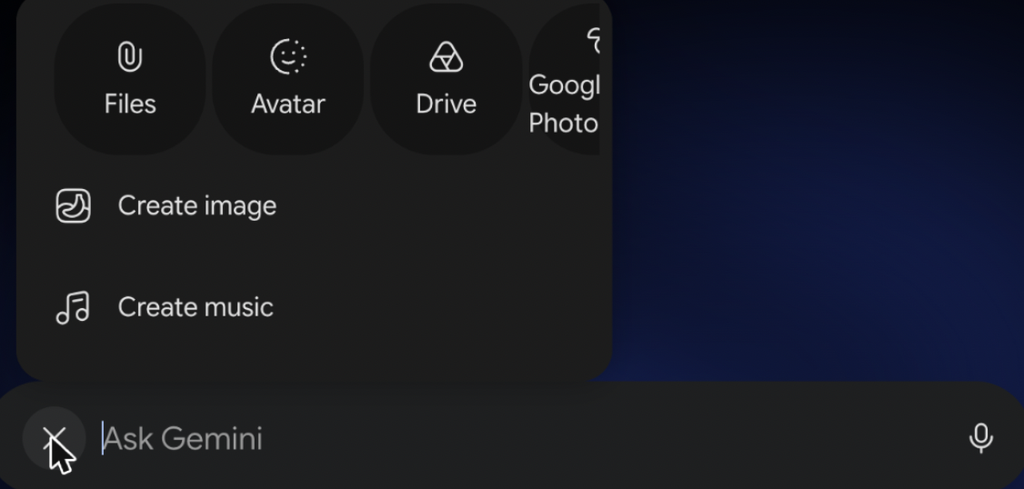
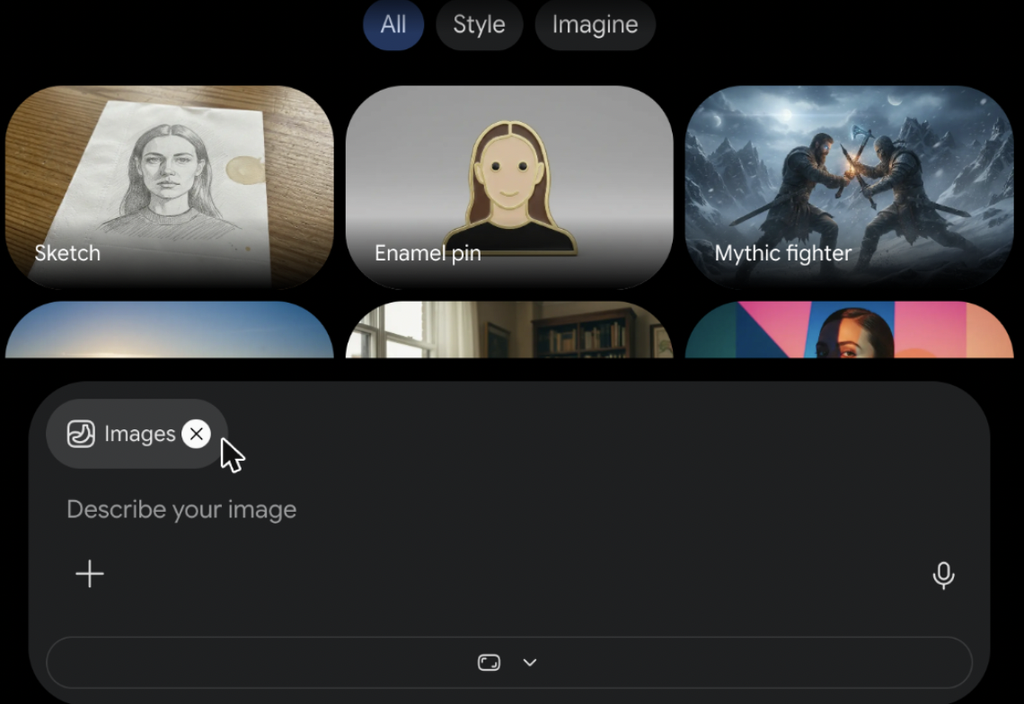
- To create a new image, choose Create image. The box changes to “Describe your image”, and an Aspect ratio option appears below it.
-
Type or paste your editing prompt and press Enter.
-
Check the result. If something is off, reply in the same chat with one change at a time.
-
Use the download button on the image to save it.
Real example: one prompt, one change
We first created this photo in Gemini:
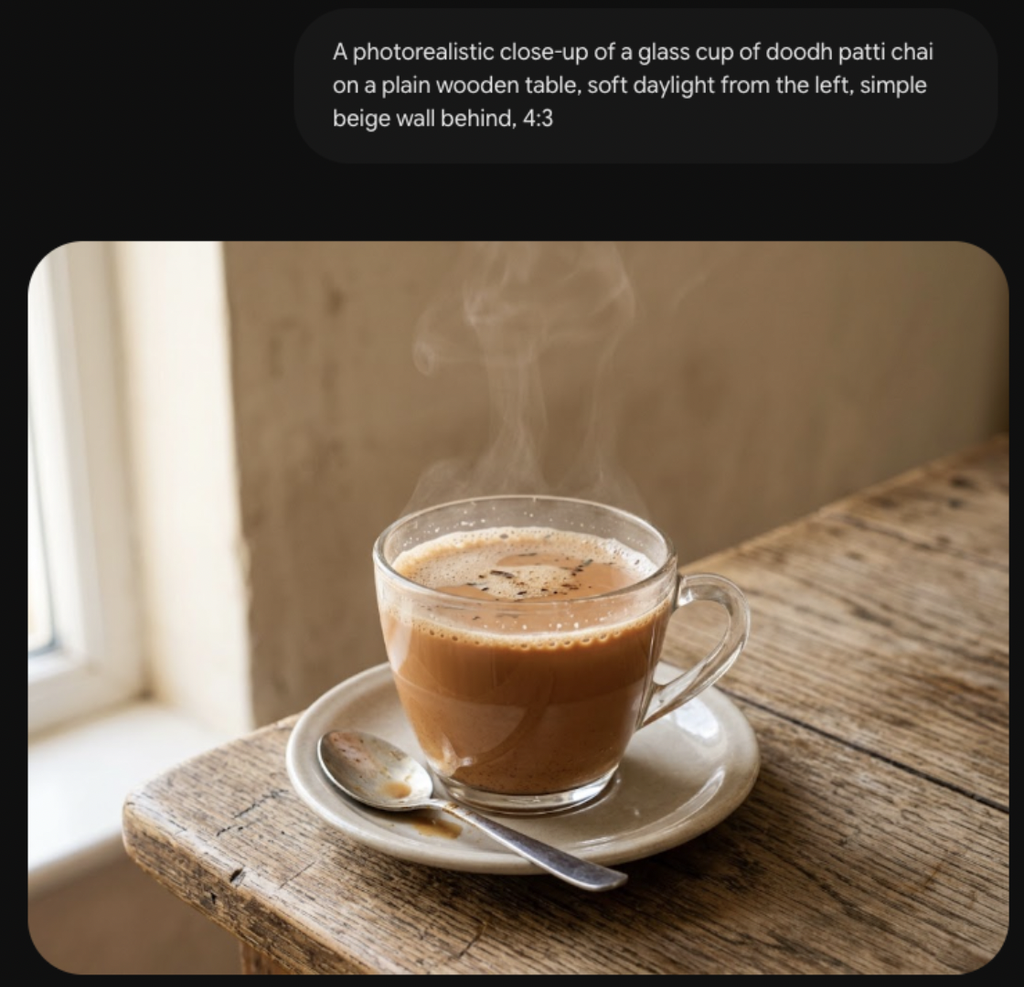
Then we sent this edit prompt in the same chat:
Change only the background to a rainy window with soft blurred city lights. Keep the cup, the chai and the table exactly the same.
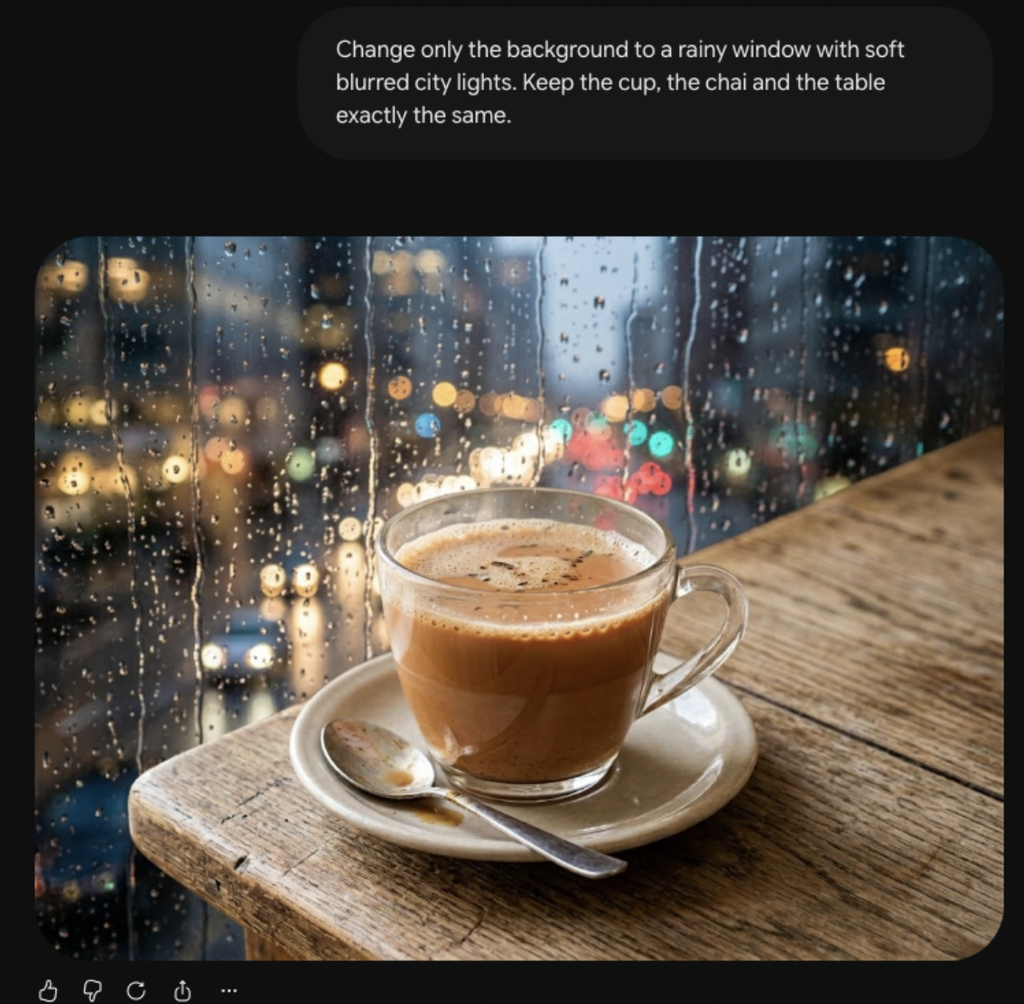
The background changed and the cup, saucer, spoon and table stayed the same. That is the pattern every prompt below follows: one clear change + what to keep.
How to Write a Gemini Editing Prompt That Works
Google’s prompt tips for its image model give a clear structure. For editing a photo you already have, use this formula:
Action + exact change + what to keep + style or mood (optional) + size (optional)
| Part | What to write | Example |
|---|---|---|
| Action | Start with a clear verb | Change, remove, add, replace, restore |
| Exact change | Name the thing and the result | the background to a plain white wall |
| What to keep | List what must not change | Keep the face, hair and clothes exactly the same |
| Style or mood | Light, colour or look | soft natural daylight, warm tones |
| Size | Aspect ratio for where you will post | 1:1 for Instagram, 9:16 for Stories, 16:9 for YouTube |
Google’s editing tips in short:
-
Be direct. Example from Google: “remove the car in the background”.
-
Say what stays the same. Google’s own example ends with “while keeping everything else the same”.
-
Change camera and light by name, such as “Turn this scene into nighttime”.
-
With several photos, give each one a role, such as “Use Image A for the pose, Image B for the style”.
Replace anything in [square brackets] in the prompts below with your own details.
100+ Gemini AI Photo Editing Prompts (Copy & Paste)
Upload your photo first, then paste one prompt at a time.
1. Basic Photo Fixes (10 prompts)
-
Make this photo sharper and clearer. Keep all colours, faces and details the same.
-
Fix the low light in this photo so it looks bright and natural. Do not change anything else.
-
Remove the noise and grain from this photo while keeping the details sharp.
-
Straighten this photo so the horizon is level. Keep everything else the same.
-
Fix the blur on the face only. Keep the background as it is.
-
Balance the colours so the whites look white and skin tones look natural.
-
Reduce the strong shadows on the face caused by direct sunlight.
-
Brighten the dark corners of this photo without making the centre too bright.
-
Correct the yellow tint from indoor bulbs so the colours look like daylight.
-
Increase the contrast slightly so the photo looks less flat. Keep it natural.
2. Portrait Retouching (12 prompts)
-
Lightly smooth the skin while keeping natural skin texture. Keep the face shape and features exactly the same.
-
Remove the small spot on the [left cheek]. Change nothing else.
-
Reduce the dark circles under the eyes slightly. Keep the eyes the same.
-
Fix the red eyes in this photo.
-
Make the teeth slightly whiter but still natural.
-
Tidy the loose hair strands around the head. Keep the hairstyle the same.
-
Remove the shine on the forehead and nose.
-
Open the eyes of the person on the [right], who blinked. Keep their face the same.
-
Make the person look straight at the camera. Keep the face and expression the same.
-
Give this portrait a soft, blurred background like a DSLR photo. Keep the person sharp.
-
Add soft studio lighting to this portrait from the front left. Keep the face the same.
-
Remove the glare from the glasses. Keep the glasses and eyes the same.
3. Background Changes (12 prompts)
-
Change only the background to a plain white wall. Keep the person exactly the same.
-
Remove the background and replace it with a solid light grey colour.
-
Change the background to a green park with soft daylight. Keep the person, clothes and lighting on the face the same.
-
Replace the messy room behind me with a clean, modern living room.
-
Change the background to the Badshahi Mosque, Lahore at sunset. Keep me exactly the same.
-
Put me in front of Faisal Mosque, Islamabad on a clear day. Match the light on my face to the new scene.
-
Change the background to a snowy mountain view like the northern areas of Pakistan.
-
Change the background to a beach at golden hour. Keep the person and clothes the same.
-
Replace the background with a blurred office. Keep the person sharp.
-
Change the sky to a clear blue sky with a few white clouds.
-
Make the background dark and plain so the person stands out.
-
Change the background to a rainy window with soft blurred city lights. Keep the subject exactly the same.
4. Remove or Add Objects (10 prompts)
-
Remove the people walking in the background. Fill the space naturally.
-
Remove the car in the background.
-
Remove the wires and electric poles from the sky.
-
Remove the text and logo from the wall behind me.
-
Remove the bag lying on the floor. Keep everything else the same.
-
Add a cup of chai on the table next to my hand.
-
Add a bunch of fresh flowers in a vase on the left side of the table.
-
Add soft fairy lights hanging behind the person.
-
Remove the photobomber on the right edge of the photo.
-
Remove the clutter from the desk: papers, cables and bottles. Keep the laptop.
5. Lighting and Colour (10 prompts)
-
Turn this daytime photo into a night scene with street lights on.
-
Add warm golden hour sunlight coming from the left.
-
Make this photo black and white with strong contrast.
-
Give this photo a warm, cosy colour tone.
-
Give this photo a cool blue cinematic colour grade.
-
Make the colours more vivid but keep skin tones natural.
-
Change the season in this photo to winter with light snow on the ground.
-
Turn this into a rainy day with wet roads and reflections.
-
Add soft fog in the background to give a calm mood.
-
Add dramatic side lighting to this portrait. Keep the face the same.
6. Old Photo Restoration (8 prompts)
-
Restore this old photo. Remove scratches, dust and tears. Keep the faces exactly the same.
-
Colourise this black and white photo with natural, realistic colours.
-
Fix the faded colours in this old photo so it looks like the original print.
-
Sharpen the faces in this old family photo without changing how anyone looks.
-
Remove the fold line across the middle of this photo.
-
Fill in the missing corner of this photo so it matches the rest.
-
Restore and colourise this old wedding photo. Keep the clothes and jewellery details as they are.
-
Remove the yellow stains from this scanned photo.
7. Eid, Weddings and Pakistani Occasions (14 prompts)
-
Add a soft Eid evening background with a crescent moon and warm lanterns. Keep the people and clothes exactly the same.
-
Add warm fairy lights and marigold flowers behind us for a mehndi look. Keep our faces and outfits the same.
-
Change the background to a decorated shaadi stage with flowers and soft lights.
-
Make the colours of this wedding photo richer, especially the red and gold of the dress. Keep skin tones natural.
-
Remove the guests in the background of this bride photo. Fill the space with soft blurred lights.
-
Add a light green and white 14 August theme with small Pakistani flags in the background. Keep the person the same.
-
Turn this family photo into a warm Eid greeting card layout with space at the top for text.
-
Add soft Ramadan lanterns and a crescent moon to the window behind the iftar table.
-
Make the mehndi design on the hands look sharper and clearer. Do not change the pattern.
-
Change the background of this graduation photo to a plain university hall. Keep the gown and cap the same.
-
Add a gentle warm glow to this Chand Raat photo. Keep the bangles and mehndi as they are.
-
Turn this photo into a vertical 9:16 WhatsApp status with the people centred.
-
Remove the harsh flash look from this wedding hall photo and make it soft and warm.
-
Combine these two photos so all family members stand together in one group photo. Keep every face exactly the same.
8. Profile and Professional Photos (8 prompts)
-
Turn this selfie into a professional headshot with a plain grey background and soft studio light. Keep my face exactly the same.
-
Change my shirt to a dark blue suit with a white shirt and no tie. Keep my face and hair the same.
-
Crop and frame this photo as a LinkedIn profile picture, head and shoulders, centred, 1:1.
-
Make the background a clean, blurred office for a CV photo.
-
Fix my posture slightly so my shoulders look level. Keep my face the same.
-
Give this photo even, flattering light like a studio headshot.
-
Change the background to a soft gradient from dark blue to light blue.
-
Make this group office photo look consistent in colour and light for a company website.
9. Product Photos for Online Sellers (10 prompts)
-
Remove the background and place this product on a pure white background with a soft shadow, 1:1.
-
Place this [lawn suit] on a clean wooden hanger against a light beige wall.
-
Put this [perfume bottle] on a marble surface with soft morning light.
-
Make the colours of this product match real life. Remove the yellow tint.
-
Show this [shoe] on a simple stone step outdoors with natural light.
-
Place this [food dish] on a dark table with steam rising, top-down view.
-
Remove my hand holding the product and fill the space naturally.
-
Create a lifestyle shot: this [handbag] on a cafe table next to a cup of coffee.
-
Make three versions of this product photo with white, beige and light grey backgrounds.
-
Resize this product photo to 4:5 for an Instagram post without cutting the product.
10. Art Styles (12 prompts)
-
Turn this photo into a watercolour painting. Keep the faces recognisable.
-
Turn this photo into a pencil sketch on white paper.
-
Make this photo look like an oil painting with visible brush strokes.
-
Turn this into a 3D cartoon character style. Keep the person recognisable.
-
Give this photo a vintage 1970s film look with warm faded colours.
-
Turn this photo into a Pakistani truck art style illustration with bright colours and floral patterns.
-
Make this photo look like a page from a comic book.
-
Turn this landscape into a Mughal miniature painting style.
-
Turn this pet photo into a cute sticker with a white border.
-
Turn this photo into a minimal line drawing.
-
Give this photo a cinematic movie poster look with dramatic lighting.
-
Turn this photo into a small figurine on a desk, as if it were a collectible toy.
11. Resize and Expand (6 prompts)
-
Expand this photo to 16:9. Fill the new space on both sides naturally.
-
Change this photo to 9:16 for a story. Keep the person centred and uncut.
-
Change this photo to 1:1 without cropping the faces.
-
Extend the sky above the building so there is space for text.
-
Zoom out and show more of the room around the person.
-
Make a YouTube thumbnail size version, 16:9, with the person on the right and empty space on the left.
12. Combine Several Photos (5 prompts)
-
Use Image 1 for the person and Image 2 for the background. Match the lighting so it looks real.
-
Put the person from Image 1 next to the person in Image 2 in one natural photo. Keep both faces the same.
-
Use the colours and style of Image 2 on Image 1.
-
Dress the person in Image 1 in the outfit from Image 2. Keep the face and pose the same.
-
Combine these three photos into one cinematic image in 16:9 format.
Limits, Watermark and Privacy: Read Before You Upload
Limits
-
Daily quota: Free users get a limited number of images. Paid Google AI plans get higher limits.
-
Download size: 1K without a Google AI plan and 2K with one.
-
Age: Image editing is not available to users under 18.
-
Quality: Google says complex edits, blending and lighting changes can create unnatural results, and faces may not stay identical across many edits.
Watermark
Images made or edited in Gemini carry an invisible SynthID watermark and a visible watermark that marks them as AI-generated. You can upload any image to Gemini and ask whether it was made with Google AI.
What happens to your photos
From the Gemini Apps Privacy Hub:
-
Uploaded images are treated like other prompts and are read with Google Lens technology.
-
Some chats are reviewed by trained human reviewers. Reviewed chats are kept for up to three years, disconnected from your account.
-
With Keep Activity on, your chats and uploads can be used to improve Google’s AI models.
-
With Keep Activity off, or in a Temporary chat, chats are kept for 72 hours and are not used for training.
Google’s own advice is not to enter anything you would not want a reviewer to see. For private family photos, use a Temporary chat or turn off Keep Activity first. Google also asks users to respect others’ privacy and copyright, so only edit photos of people who have agreed.
When the result goes wrong
| Problem | Fix |
|---|---|
| Face looks different | Add “Keep the face exactly the same” and ask for one change at a time |
| Too many things changed | Name the one thing to change and say “change nothing else” |
| Nothing changed | Use a stronger action word: replace, remove, turn into |
| Lighting looks fake | Ask to “match the lighting on the person to the new background” |
| Image got cropped | Give the aspect ratio and say “do not crop the faces” |
FAQs
Is Gemini photo editing free?
Yes, with a daily limit. Paid Google AI plans give higher limits and 2K downloads.
Can I edit photos in Gemini on my phone?
Yes. The same steps work in the Gemini app: tap +, upload the photo, then type your prompt.
Why does Gemini change my face?
Big changes to light or style can shift facial features. Ask for one change at a time and add “keep the face exactly the same”.
Can I remove the Gemini watermark?
Gemini adds a visible watermark and an invisible SynthID watermark to mark images as AI-made. Removing these marks is not something Google supports.
Can I use these prompts in other AI tools?
Yes. The prompts are plain instructions, so they also work as a starting point in other image editors. Results will differ by tool.